
Introduction#
Welcome to the first part of my homelab series! In this part, we will explore the architecture of my homelab infrastructure and introduce the tools we will be using.
Homelab Architecture#
In this part we will get our hands dirty and get our host operating system ready for deployment.
Homelab:
We will make use of Hyperconverged Infrastructure (HCI) to achieve a seamless and efficient deployment of our homelab infrastructure. HCI combines compute, storage, and networking resources into a single system, allowing for simplified management and optimized resource utilisation.
There are a few opensource solutions that help to ease the setup procedure.
There is Harvester an opensource HCI solution build on kubernetes, which provides a simple and efficient way to deploy and manage homelab infrastructure.
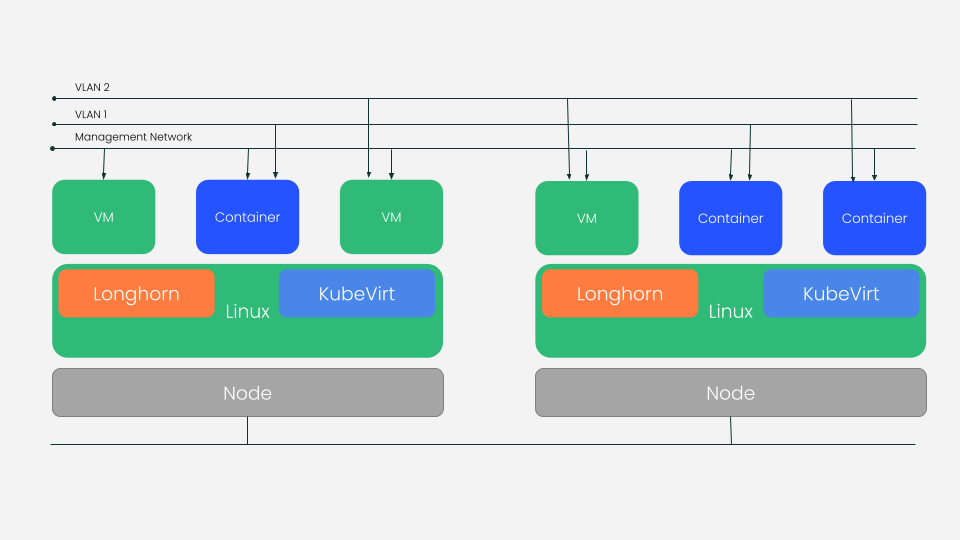
Harvester is a great project however it is still in its early stages and lacks some features that are available in other HCI solutions. It is also not as feature-rich as other HCI solutions such as XCP-ng (open-source ESXi-like), oVirt (KVM-based), and Proxmox (KVM-based).

What is Proxmox#
Proxmox Virtual Environment is a complete, open-source server management platform for enterprise virtualization. It tightly integrates the KVM hypervisor and Linux Containers (LXC), software-defined storage and networking functionality, on a single platform. With the integrated web-based user interface you can manage VMs and containers, high availability for clusters, or the integrated disaster recovery tools with ease.
Architecture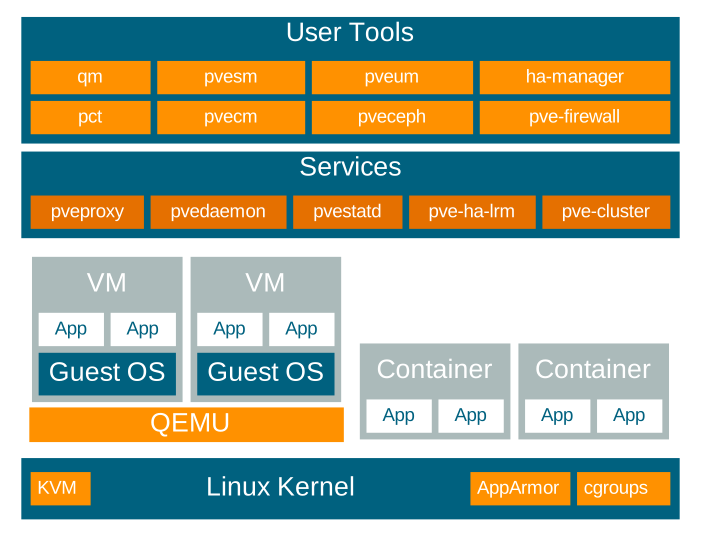
To be honest there is no reason except for simplicity in installation and a common debian base as all our OS images will be debian based
Download Proxmox ISO#
wget https://enterprise.proxmox.com/iso/proxmox-ve_9.1-1.iso
Create USB image from iso
sudo dd if=./proxmox-ve_9.1-1.iso of=/dev/sdX bs=4M status=progress oflag=sync
Installation#
Boot from ISO/USB
Select Terminal UI
Accept License
Select Install Disk
-> Advance Options
	 File system -> I use ZFS or BTRFS both RAID 1
-> continue until password prompt
	 Enter your details
-> Setup your hostname and network config
-> Install and reboot
After Reboot login to webui
https://serverIP:8006
Login and select node on left then >_ Shell
Enter the following commands in the web shell and not using ssh
# Configure update repo, remove subscription nag

bash -c "$(curl -fsSL https://raw.githubusercontent.com/community-scripts/ProxmoxVE/main/tools/pve/post-pve-install.sh)""
Output
 / __ \ |  / / ____/  / __ \____  _____/ /_   /  _/___  _____/ /_____ _/ / /
  / /_/ / | / / __/    / /_/ / __ \/ ___/ __/   / // __ \/ ___/ __/ __ `/ / /
 / ____/| |/ / /___   / ____/ /_/ (__  ) /_   _/ // / / (__  ) /_/ /_/ / / /
/_/     |___/_____/  /_/    \____/____/\__/  /___/_/ /_/____/\__/\__,_/_/_/


This script will Perform Post Install Routines.

Start the Proxmox VE Post Install Script (y/n)? y
Select Yes to correct update sources
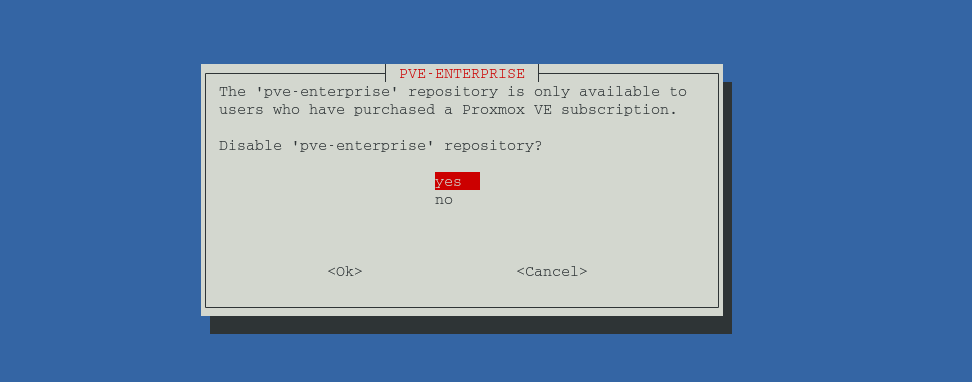
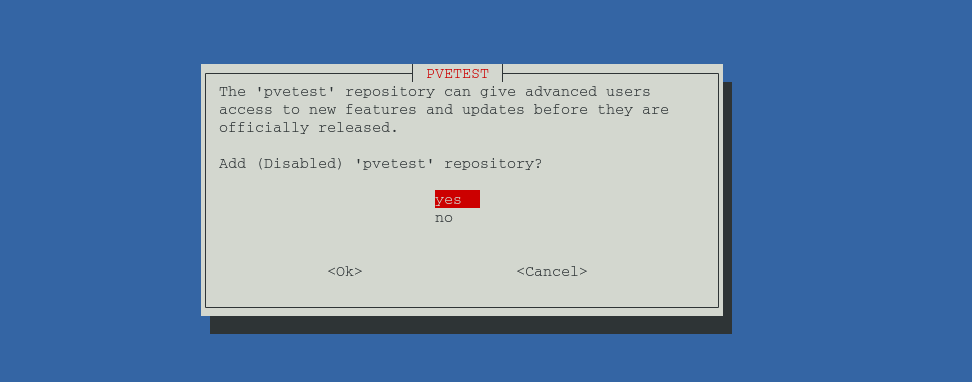
The script will run and apply the changes, reboot to complete the configuration.
Scripts thanks to the Community .
Proxmox Configurations#
SSH Keys#
Some other configuration I do.
# Add SSH keys
scp -r ./ssh/* root@pve:~/.ssh/
User Configurations#
Configure user sync if required.
Storage#
Configure your storage For Full H/A I recommend setting up ceph
Homelab Configuration Summary:#
| Server Name | Hostname | IP Address | Storage Network |
|---|---|---|---|
| pve1 | pve1.wagner.org.za | 192.168.100.1/16 | 172.16.0.1/24 |
| pve2 | pve2.wagner.org.za | 192.168.100.2/16 | 172.16.0.2/24 |
| pve3 | pve3.wagner.org.za | 192.168.100.3/16 | 172.16.0.3/24 |
Software-Defined Network (SDN)#
The Software-Defined Network (SDN) feature in Proxmox VE enables the creation of virtual zones and networks (VNets). This functionality simplifies advanced networking configurations and multitenancy setup. Proxmox
We will make use of SDN to issolate our clusters.
Installation#
Lets check to make sure SDN Configuration is present.
Check for source /etc/network/interfaces.d/* in /etc/network/interfaces
for f in pve1.wagner.org.za pve2.wagner.org.za pve3.wagner.org.za; do ssh root@$f "cat /etc/network/interfaces" | if grep "source /etc/network/interfaces.d/*" | if [ $? -eq 0 ]; then echo "$f has SDN configuration"; fi; done
DHCP IPAM#
The DHCP integration into the built-in PVE IP Address Management stack currently uses dnsmasq for giving out DHCP leases.
Install on each node.
apt update
apt install dnsmasq
# disable default instance
systemctl disable --now dnsmasq
FRRouting#
Install on each node.
apt update
apt install frr-pythontools
systemctl enable frr.service
Now lets update our hosts files so we can seperatate our storage/sync network.
nano /etc/hosts
# Corosync network hosts
172.16.0.1 pve1-corosync.wagner.org.za pve1-corosync
172.16.0.2 pve2-corosync.wagner.org.za pve2-corosync
172.16.0.3 pve3-corosync.wagner.org.za pve3-corosync
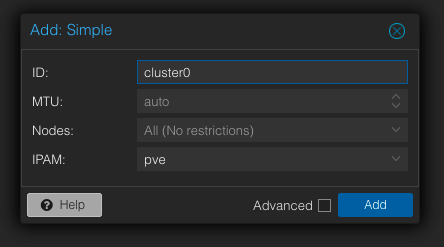
Lets create our Zones and VNets Datacenter -> SDN -> Zones Add - > simple
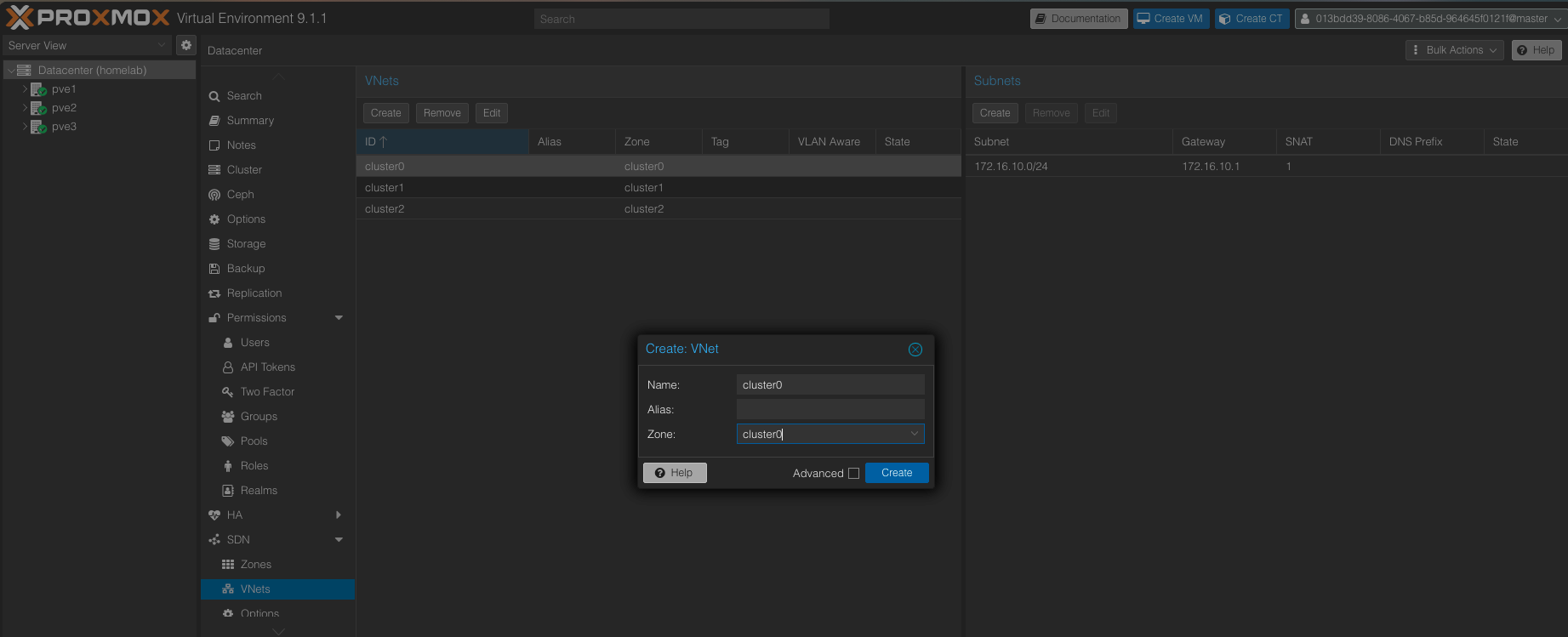
Now lets create our VNets Datacenter -> SDN -> VNets VNets -> Create
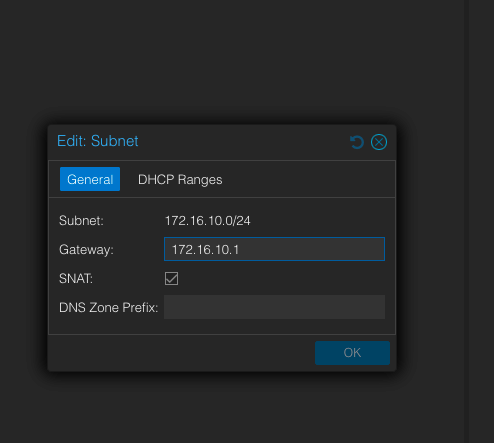
Subnets -> Create
Check out Part 2 Cloud Images