
Proxmox Cloud Images#
We will now create our base VM cloud images and using cloudinit to configure them.
Ubuntu image using CLI#
These steps can be followed for any cloud image of your choice and will work with for example Rocky linux, etc.
Choose your image at Ubuntu Cloud
ssh to proxmox node
ssh root@pve
Download Image
wget https://cloud-images.ubuntu.com/noble/current/noble-server-cloudimg-amd64.img
Create VM
qm create 8000 --memory 2048 --core 2 --name ubuntu-cloud --net0 virtio,bridge=vmbr0
Import the downloaded Ubuntu image to virtuals storage (Change virtuals to the storage of your choice)
qm disk import 8000 noble-server-cloudimg-amd64.img virtuals
Attach disk to VM
qm set 8000 --scsihw virtio-scsi-pci --scsi0 virtuals:vm-8000-disk-0
Add cloud init drive
qm set 8000 --ide2 virtuals:cloudinit
Make cloud init drive bootable and set vm to boot from disk onnly
qm set 8000 --boot c --bootdisk scsi0
Add serial console
qm set 8000 --serial0 socket --vga serial0
Now lets convert this to a template so you can create clones of it to deploy. Firstly you might want to configure your minimum hardware and cloud init settings.
PS: DO NOT START THE VM
Now lets convert it to a template
qm template 8000
Create VM
qm clone 8000 135 --name ubuntu --full
Configure your cloud init settings and start up your new VM
Debian Image using proxmox scripts#
Browse to Proxmox webui and select one of your nodes then >_ Shell.
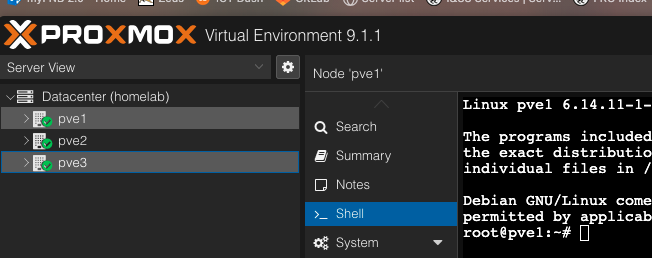
# Enter the following
bash -c "$(curl -fsSL https://git.community-scripts.org/community-scripts/ProxmoxVE/raw/branch/main/vm/debian-13-vm.sh)"
Follow on screen prompts and complete the setup then convert your VM to an template.
Troubleshooting#
Reset machine-id#
rm -f /etc/machine-id;
rm -f /var/lib/dbus/machine-id;
systemd-machine-id-setup
shutdown -h now
Covert to template
qm template 8001
Check out Part 3 — Kubernetes