
Kairos#
Kairos is a cloud-native Linux meta-distribution for running Kubernetes. It brings the power of the public cloud to your on-premises environment. https://kairos.io/
Kairos is a Cloud Native Computing Foundation CNCF sandbox project.
Architecture#
Kairos is designed to be a lightweight, secure, and scalable solution for deploying Kubernetes clusters. It uses a combination of containerized components and a lightweight operating system to provide a highly available and fault-tolerant platform.
Immutable#
Kairos is an immutable platform, meaning that once a node is provisioned, it cannot be modified. This ensures that the node is always in a known state and reduces the risk of configuration drift.
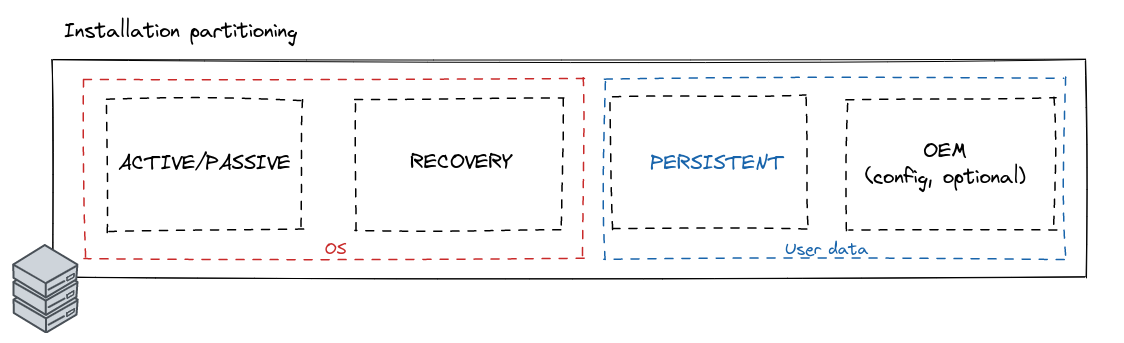
Kairos after installation will create the following partitions:
- A state partition that stores the container images, which are going to be booted (active and passive, stored in .img format which are loopback mounted)
- A recovery partition that stores the container images, used for recovery (in .squashfs format)
- An OEM partition (optional) that stores user configuration and cloud-config files
- A persistent partition to keep the data across reboots
Container based#
Kairos delivers its entire OS as a container image. A container-based operating system is an OS that is shipped via containers. The image being booted is the container, which contains all the required pieces in order to boot (Kernel, Initrd, Init system). There is no real container runtime running the image. The container is used to construct an image internally that is then used to boot the system in an A/B fashion, so there is no overhead introduced. The system being booted is actually a snapshot of the container.
- Single-image The OS is a single container image which contains all the OS components, including Kernel and Initrd.
- Tamper-proof upgrades Upgrades are atomic, A/B swaps with fallback mechanisms and automatic boot assessment.
- Distributed via container registries Bootable images are standard OCI artifacts that can be hosted in any container registry.
- Platform Engineer-friendly Adapt the infrastructure to your needs by plugging images into your already-existing workflow pipeline. Customizing an immutable OS becomes as easy as writing a Dockerfile.
A/B Upgrades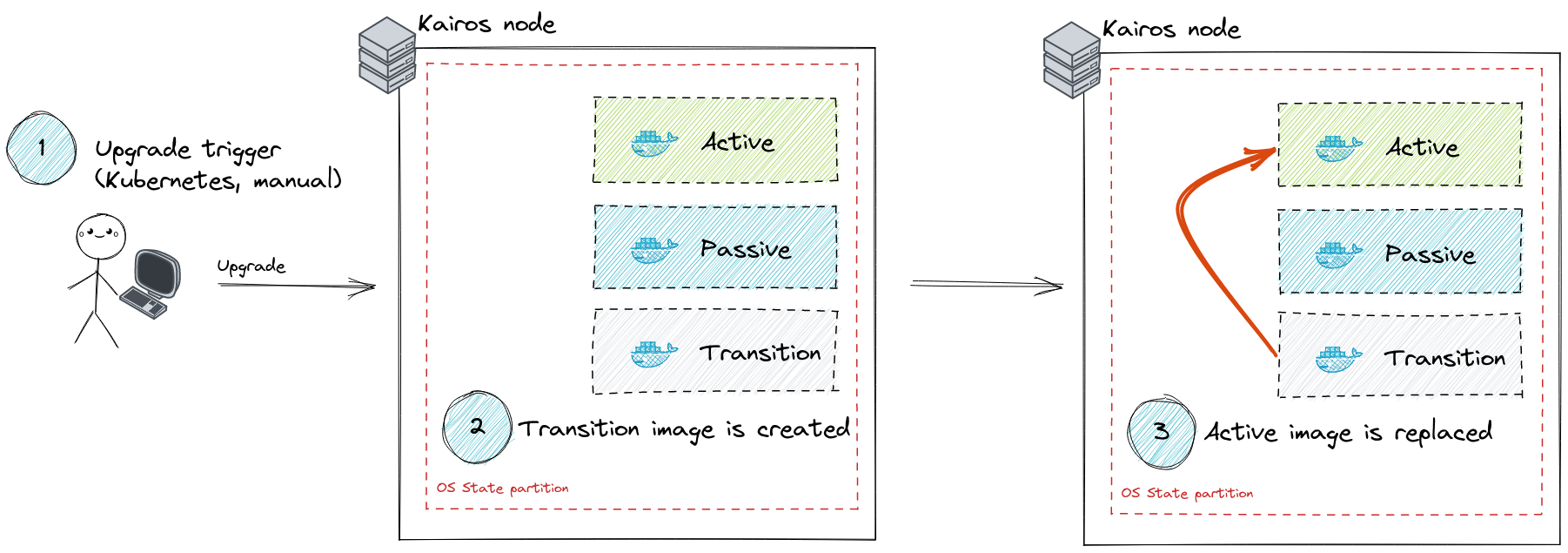
Installations#
Overview
Installation Steps#
- Download the Kairos image from the official source.
- Create a 4 virtual servers.
- Install Kairos.
Lets boot our control plane “Master” node using the kairos image.
Connect to the web installer interface http://{ip}:8080
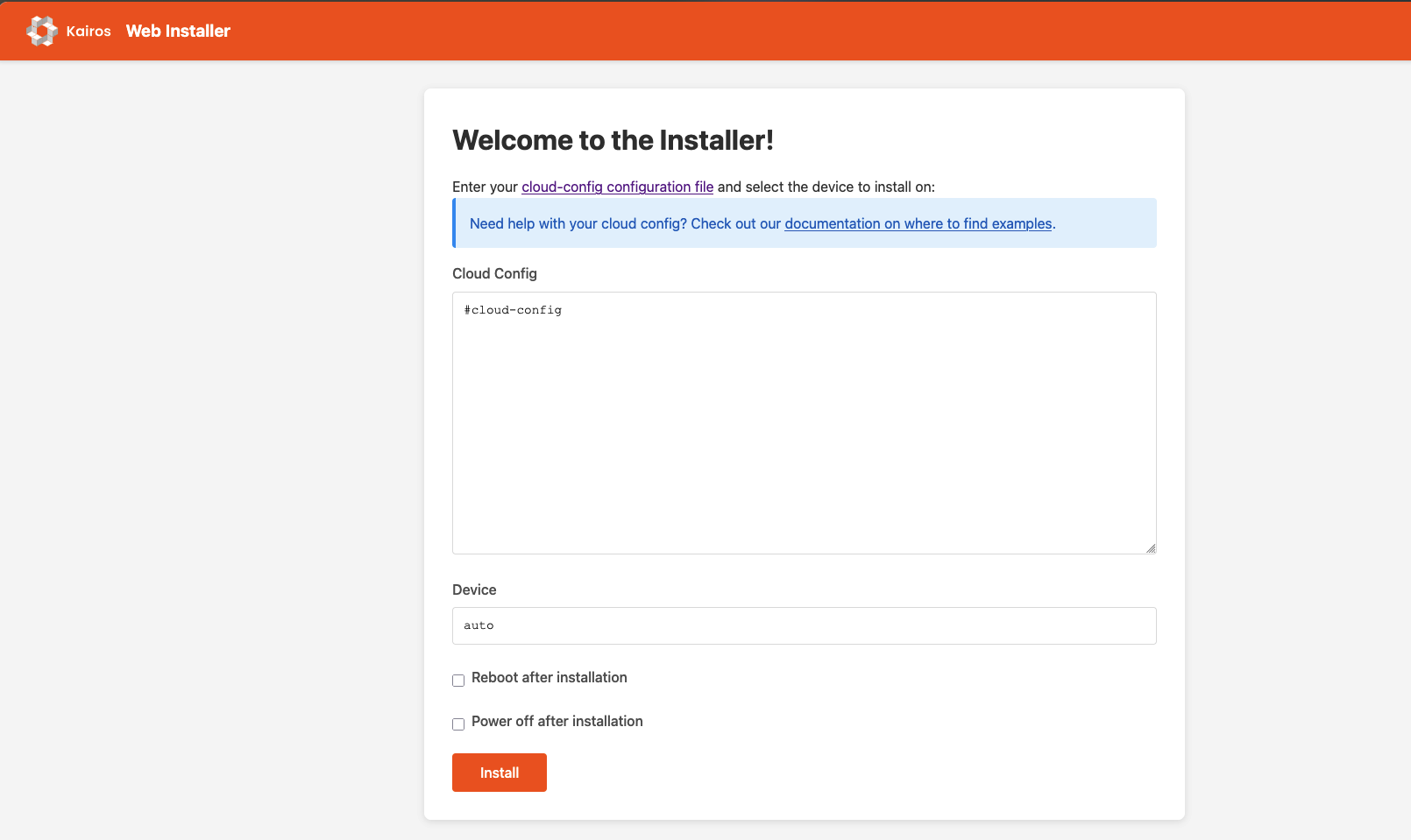
Master node cloud config
#cloud-config

hostname: cluster1-cp
users:
- name: cw # Change to your own user
  passwd: kairos # Change to your own password
  groups:
    - admin # This user needs to be part of the admin group
  ssh_authorized_keys:
    - yourssh key

kubevip:
  eip: "172.16.20.1"

k3s:
  enabled: true
  args:
    - --disable=traefik,servicelb,disable-network-policy
    - --flannel-backend=none
    - --kubelet-arg containerd=/run/k3s/containerd/containerd.sock
    - --kubelet-arg cloud-provider=external
    - --tls-san 172.16.20.1
    - --kube-controller-manager-arg bind-address=0.0.0.0
    - --kube-proxy-arg metrics-bind-address=0.0.0.0
    - --kube-scheduler-arg bind-address=0.0.0.0
No lets get our token from our master node and deploy our worker nodes.
➜ ssh [email protected]
The authenticity of host '172.16.20.2 (172.16.20.2)' can't be established.
ED25519 key fingerprint is SHA256:MFxIb6xGD/gI95IHPZiJbJmb0ov/QoBe+RpBgSAoB3M.
This key is not known by any other names.
Are you sure you want to continue connecting (yes/no/[fingerprint])? yes
Warning: Permanently added '172.16.20.2' (ED25519) to the list of known hosts.
Welcome to Kairos!

Refer to https://kairos.io for documentation.
Welcome to Kairos!

Refer to https://kairos.io for documentation.
-sh-5.3$ sudo su
bash-5.3# cat /var/lib/rancher/k3s/server/node-token
K10d37a3a7166e68c3943624af9b87b375306d5c5443bd721fbd72afe8c7bbca5a9::server:ae149a0ed13e47d3ee65b57378f02d5d
Worker nodes
With the master node up and running, we can configure the worker nodes.
#cloud-config

hostname: cluster1-wrk-{{ trunc 4 .MachineID }}
users:
- name: cw # Change to your own user
  passwd: kairos # Change to your own password
  groups:
    - admin # This user needs to be part of the admin group
  ssh_authorized_keys:
    - your ssh key

k3s-agent:
  enabled: true
  args:
  - --with-node-id # will configure the agent to use the node ID to communicate with the master node
  env:
      K3S_TOKEN: "K10d37a3a7166e68c3943624af9b87b375306d5c5443bd721fbd72afe8c7bbca5a9::server:ae149a0ed13e47d3ee65b57378f02d5d" # /var/lib/rancher/k3s/server/node-token from the master node
      K3S_URL: https://172.16.20.2:6443 # Same IP that you use to log into your master node
Retrieve kubeconfig file from master node.
scp [email protected]:/etc/rancher/k3s/k3s.yaml /home/username/.kube/config
Check status of the cluster
✗  k get nodes
NAME                     STATUS     ROLES           AGE   VERSION
cluster1-cp              NotReady   control-plane   57m   v1.34.2+k3s1
cluster1-wrk1-6189201e   NotReady   <none>          29m   v1.34.2+k3s1
cluster1-wrk2-61f99182   NotReady   <none>          30m   v1.34.2+k3s1
cluster1-wrk3-6332a29e   NotReady   <none>          28m   v1.34.2+k3s1
Gateway API#
Install CRD’s#
k apply --server-side -f https://github.com/kubernetes-sigs/gateway-api/releases/download/v1.4.1/experimental-install.yaml
We using the experimental branch to enable tls routing
Cilium#
Install cilium cli using app store or homebrew
brew install cilium-cli
cilium version
  cilium-cli: v0.18.8 compiled with go1.25.3 on darwin/arm64
  cilium image (default): v1.18.2
  cilium image (stable): v1.18.4
  cilium image (running): 1.18.4
Install Cilium using cli#
Create values.yaml file
# values.yaml
k8sServiceHost: 172.16.10.2
k8sServicePort: 6443

kubeProxyReplacement: true

l2announcements:
  enabled: true

externalIPs:
  enabled: true

k8sClientRateLimit:
  qps: 50
  burst: 200

operator:
  # replicas: 1  # Uncomment this if you only have one node
  rollOutPods: true

rollOutCiliumPods: true
ingressController:
  enabled: false

gatewayAPI:
  enabled: true

hubble:
  relay:
    enabled: true
  ui:
    enabled: true

bgpControlPlane:
  enabled: true
Install using cli
cilium install --version 1.18.4 --values values.yaml
Check status
➜ cilium status --wait
   /¯¯\
/¯¯\__/¯¯\    Cilium:             OK
\__/¯¯\__/    Operator:           OK
/¯¯\__/¯¯\    Envoy DaemonSet:    OK
\__/¯¯\__/    Hubble Relay:       OK
   \__/       ClusterMesh:        disabled

DaemonSet              cilium                   Desired: 4, Ready: 4/4, Available: 4/4
DaemonSet              cilium-envoy             Desired: 4, Ready: 4/4, Available: 4/4Deployment             cilium-operator          Desired: 1, Ready: 1/1, Available: 1/1
Deployment             hubble-relay             Desired: 1, Ready: 1/1, Available: 1/1
Deployment             hubble-ui                Desired: 1, Ready: 1/1, Available: 1/1
Containers:            cilium                   Running: 4
                      cilium-envoy             Running: 4
                      cilium-operator          Running: 1
                      clustermesh-apiserver
                      hubble-relay             Running: 1
                      hubble-ui                Running: 1
Cluster Pods:          5/5 managed by Cilium
Helm chart version:    1.18.4
Image versions         cilium             quay.io/cilium/cilium:v1.18.4@sha256:49d87af187eeeb9e9e3ec2bc
6bd372261a0b5cb2d845659463ba7cc10fe9e45f: 4                       cilium-envoy       quay.io/cilium/cilium-envoy:v1.34.10-1762597008-ff7ae7d623be0
0078865cff1b0672cc5d9bfc6d5@sha256:1deb6709afcb5523579bf1abbc3255adf9e354565a88c4a9162c8d9cb1d77ab5: 4                       cilium-operator    quay.io/cilium/operator-generic:v1.18.4@sha256:1b22b9ff28affd
f574378a70dade4ef835b00b080c2ee2418530809dd62c3012: 1                       hubble-relay       quay.io/cilium/hubble-relay:v1.18.4@sha256:6d350cb1c84b847adb
152173debef1f774126c69de21a5921a1e6a23b8779723: 1                       hubble-ui          quay.io/cilium/hubble-ui-backend:v0.13.3@sha256:db1454e45dc39
ca41fbf7cad31eec95d99e5b9949c39daaad0fa81ef29d56953: 1                       hubble-ui          quay.io/cilium/hubble-ui:v0.13.3@sha256:661d5de7050182d495c64
97ff0b007a7a1e379648e60830dd68c4d78ae21761d: 1
At this stage you might want to taint your control plan nodes to not run any workloads as k3s by default allows workloads to run on control plan nodes.
k taint node cluster1-cp CriticalAddonsOnly=true:NoExecute
k config set-context --current --namespace=homelab
Lets create our l2 Announcement policy
#l2.yaml
---
apiVersion: cilium.io/v2alpha1
kind: CiliumL2AnnouncementPolicy
metadata:
  name: default-l2-announcement-policy
  namespace: kube-system
spec:
  interfaces:
    - "^ens[0-9]*"
  externalIPs: true
  loadBalancerIPs: true
---
Make sure to use the correct network interface.
Now lets create our ip pool file.
# ippool.yaml
---
apiVersion: cilium.io/v2
kind: CiliumLoadBalancerIPPool
metadata:
  name: first-pool
spec:
  blocks:
  #- cidr: 172.16.10.1/24
  - start: 172.16.2.1
  - stop: 172.16.2.200
Apply these manifests.
k apply -f l2.yaml -f ippool.yaml
Before we create our gateway lets install cert-manager to manage our certs.
Cert-Manager#
We will install cert-manager enabling gateway api support
# Add helm repo
helm repo add jetstack https://charts.jetstack.io --force-update

# Install
helm upgrade --install \
  cert-manager jetstack/cert-manager \
  --namespace cert-manager \
  --create-namespace \
  --set crds.enabled=true --set "extraArgs={--feature-gates=ExperimentalGatewayAPISupport=true,--dns01-recursive-nameservers=1.1.1.1:53\,9.9.9.9:53,--dns01-recursive-nameservers-only}"
Setup and configure cert-manager to your requirements.
Example of ClusterIssuer
#ClusterIssuer.yaml
apiVersion: cert-manager.io/v1
kind: ClusterIssuer
metadata:
  name: letsencrypt
  namespace: cert-manager
spec:
  acme:
    server: https://acme-v02.api.letsencrypt.org/directory
    email: [email protected]
    privateKeySecretRef:
      name: letsencrypt
    solvers:
      - dns01:
          cloudflare:
            email: [email protected]
            apiTokenSecretRef:
              name: cloudflare-token-secret
              key: cloudflare-token
        selector:
          dnsZones:
            - "c1.wagner.org.za"
Now that we have cert-manager setup we can procceed.
Create gateway#
#gateway.yaml
apiVersion: gateway.networking.k8s.io/v1
kind: Gateway
metadata:
  name: gateway
  namespace: kube-system
  labels:
    gateway: gateway
spec:
  gatewayClassName: cilium
  addresses:
  - type: IPAddress
    value:  172.16.2.1
  listeners:
    - name: https
      protocol: HTTPS
      port: 443
      allowedRoutes:
        namespaces:
          from: All
      tls:
        mode: Terminate
        certificateRefs:
          - kind: Secret
            name: wagner-tls
            namespace: kube-system
Apply it
k apply -f gateway.yaml
Check status
➜ k get gateway -n kube-system
NAME      CLASS    ADDRESS        PROGRAMMED   AGE
gateway   cilium   172.16.2.1   True         19s
Add the following to your DNS server for name resourslutions or to your hosts file.
172.16.2.1 *.apps.c1.wagner.org.za
Now lets create a route for hubble ui
#hubble-ui-httproute.yaml
apiVersion: gateway.networking.k8s.io/v1beta1
kind: HTTPRoute
metadata:
  name: hubble
  namespace: kube-system
spec:
  parentRefs:
    - name: gateway
      namespace: kube-system
      sectionName: https
  hostnames:
    - "hubble.apps.c1.wagner.org.za"
  rules:
    - matches:
        - path:
            type: PathPrefix
            value: /
      backendRefs:
        - kind: Service
          name: hubble-ui
          port: 80
Apply the route
k apply -f hubble-ui-httproute.yaml
Check routes.
➜ k get httproutes.gateway.networking.k8s.io -n kube-system
NAME     HOSTNAMES                          AGE
hubble   ["hubble.apps.c1.wagner.org.za"]   9s
eBGP#
Currently we are not able to route to our services as our network has now way of discovering these routes. We will now deploy BGP sharing and have cilium advertise our services to our router (Mikrotik).
Create bpg-peering manifest.
#bgp-peering-policy.yaml
apiVersion: "cilium.io/v2alpha1"
kind: CiliumBGPPeeringPolicy
metadata:
 name: bgp-peering-policy
spec:
 nodeSelector:
   matchLabels:
     bgp_enabled: "true"
 virtualRouters:
 - localASN: 64512
   exportPodCIDR: true
   neighbors:
    - peerAddress: '192.168.7.254/32'
      peerASN: 64512
   serviceSelector:
     matchExpressions:
       - {key: somekey, operator: NotIn, values: ['never-used-value']}
As you can see we only deploying to nodes labled bpg_enabled=true Lets lable our worker nodes
➜ k label nodes cluster1-wrk1-6189201e cluster1-wrk2-61f99182 cluster1-wrk3-6332a29e bgp_enabled=true
node/cluster1-wrk1-6189201e labeled
node/cluster1-wrk2-61f99182 labeled
node/cluster1-wrk3-6332a29e labeled
Now lets create our bgp policy.
k apply -f bgp-peering-policy.yaml
Now configure your route to match the bgp settings to your worker nodes in my example 192.168.50.2/32, 192.168.50.3/32 and 192.168.50.4/32.
Check status
➜ cilium bgp peers
Node                     Local AS   Peer AS   Peer Address    Session State   Uptime   Family         Received   Advertised
cluster1-cp              64512      64512     192.168.7.254   established     2m10s    ipv4/unicast   11         2
                                                                                      ipv6/unicast   0          0
cluster1-wrk1-6189201e   64512      64512     192.168.7.254   established     1m59s    ipv4/unicast   11         2
                                                                                      ipv6/unicast   0          0
cluster1-wrk2-61f99182   64512      64512     192.168.7.254   established     1m46s    ipv4/unicast   11         2
                                                                                      ipv6/unicast   0          0
cluster1-wrk3-6332a29e   64512      64512     192.168.7.254   established     1m39s    ipv4/unicast   11         2
                                                                                      ipv6/unicast   0          0
If the status is active and doesnt change to established check your router config and make sure you have bgp peering partners configured for each worker node.
Test connection
✗  curl -v https://hubble.apps.c1.wagner.org.za
* Host hubble.apps.c1.wagner.org.za:443 was resolved.
* IPv6: (none)
* IPv4: 172.16.2.1
*   Trying 172.16.2.1:443...
* Connected to hubble.apps.c1.wagner.org.za (172.16.2.1) port 443
* ALPN: curl offers h2,http/1.1
* (304) (OUT), TLS handshake, Client hello (1):
*  CAfile: /etc/ssl/cert.pem
*  CApath: none
* (304) (IN), TLS handshake, Server hello (2):
* (304) (IN), TLS handshake, Unknown (8):
* (304) (IN), TLS handshake, Certificate (11):
* (304) (IN), TLS handshake, CERT verify (15):
* (304) (IN), TLS handshake, Finished (20):
* (304) (OUT), TLS handshake, Finished (20):
* SSL connection using TLSv1.3 / AEAD-CHACHA20-POLY1305-SHA256 / [blank] / UNDEF
* ALPN: server did not agree on a protocol. Uses default.
* Server certificate:
*  subject: CN=*.c1.wagner.org.za
*  start date: Dec 31 11:27:10 2025 GMT
*  expire date: Mar 31 11:27:09 2026 GMT
*  subjectAltName: host "hubble.apps.c1.wagner.org.za" matched cert's "*.apps.c1.wagner.org.za"
*  issuer: C=US; O=Let's Encrypt; CN=R13
*  SSL certificate verify ok.
* using HTTP/1.x
> GET / HTTP/1.1
> Host: hubble.apps.c1.wagner.org.za
> User-Agent: curl/8.7.1
> Accept: */*
>
* Request completely sent off
< HTTP/1.1 200 OK
< server: envoy
< date: Wed, 31 Dec 2025 13:17:52 GMT
< content-type: text/html
< content-length: 702
< last-modified: Wed, 03 Sep 2025 09:25:19 GMT
< etag: "68b8097f-2be"
< accept-ranges: bytes
< x-envoy-upstream-service-time: 2
<
* Connection #0 to host hubble.apps.c1.wagner.org.za left intact
<!doctype html><html><head><meta charset="utf-8"/><title>Hubble UI</title><base href="/"/><meta name="color-scheme" content="only light"/><meta http-equiv="X-UA-Compatible" content="IE=edge"/><meta name="viewport" content="width=device-width,user-scalable=0,initial-scale=1,minimum-scale=1,maximum-scale=1"/><link rel="icon" type="image/png" sizes="32x32" href="favicon-32x32.png"/><link rel="icon" type="image/png" sizes="16x16" href="favicon-16x16.png"/><link rel="shortcut icon" href="favicon.ico"/><script defer="defer" src="bundle.main.046b68211246343ab6d5.js"></script><link href="bundle.main.250ac4c5d4e736844d1e.css" re
Using cilium cli.
cilium connectivity test